
Cart
No products in the cart.
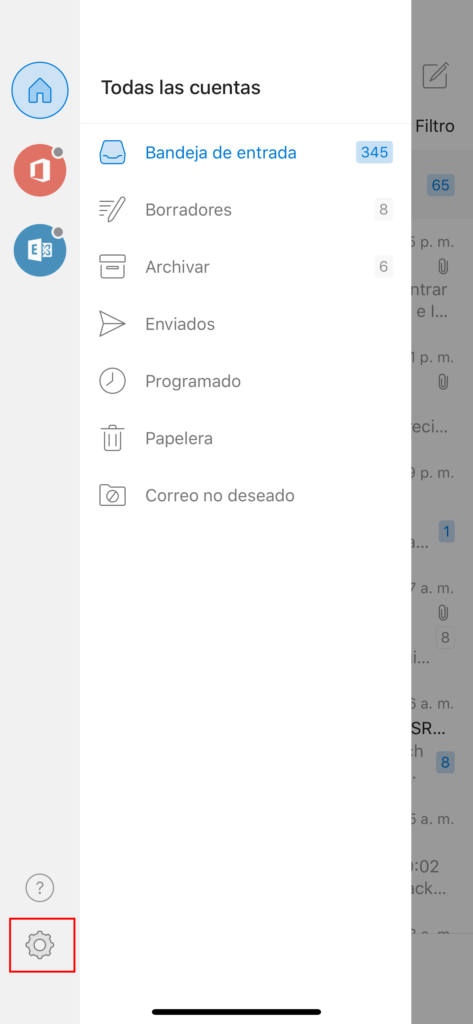
1.-Click on the three horizontal bars in the upper left and a section will appear to access the settings
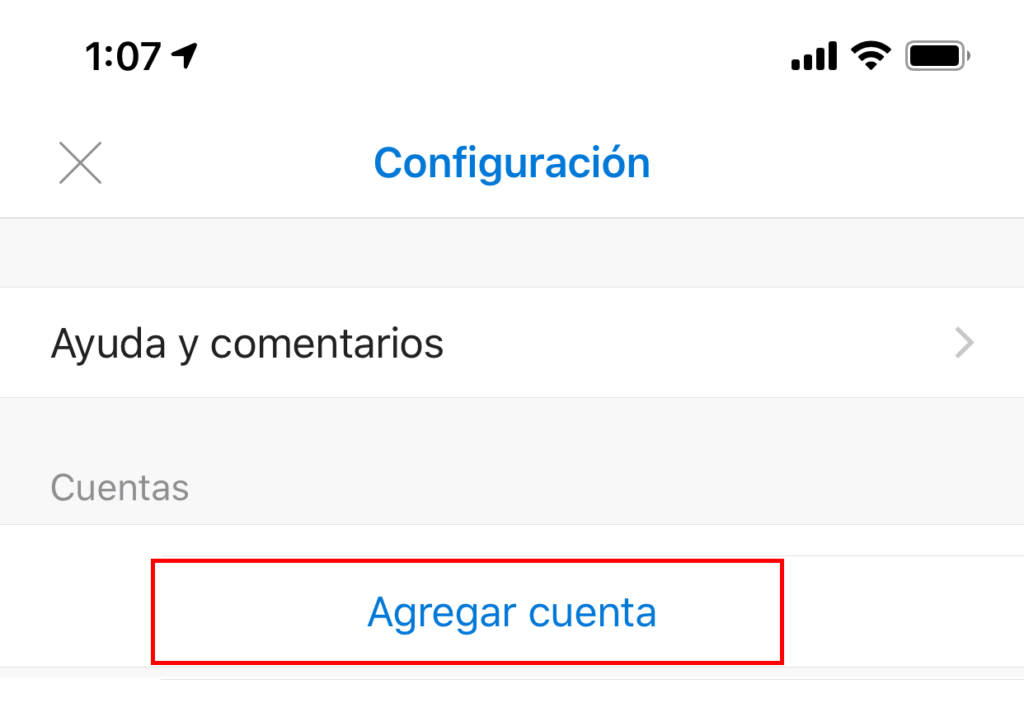
2.- Then select «Add account»
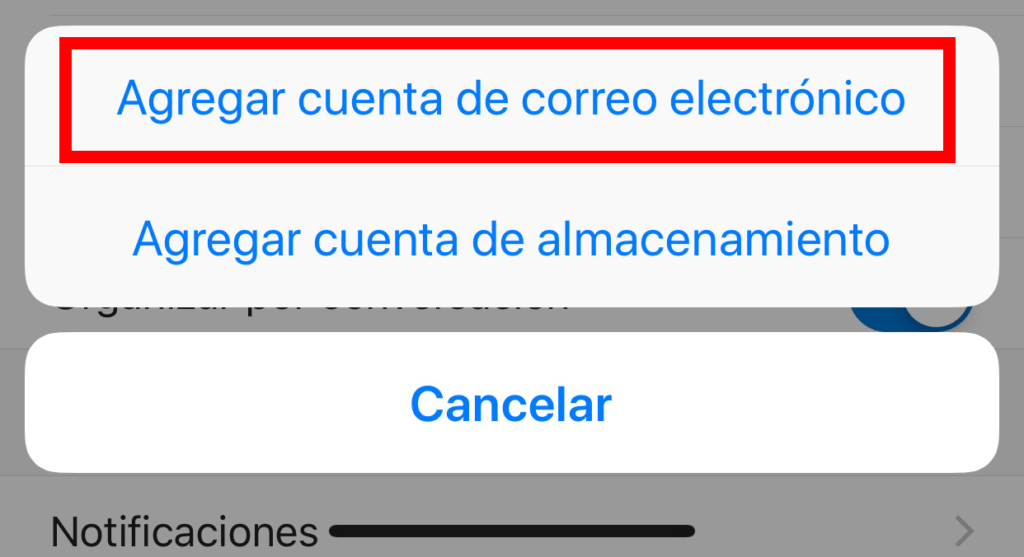
3.- In the section that appears select «Add email account»
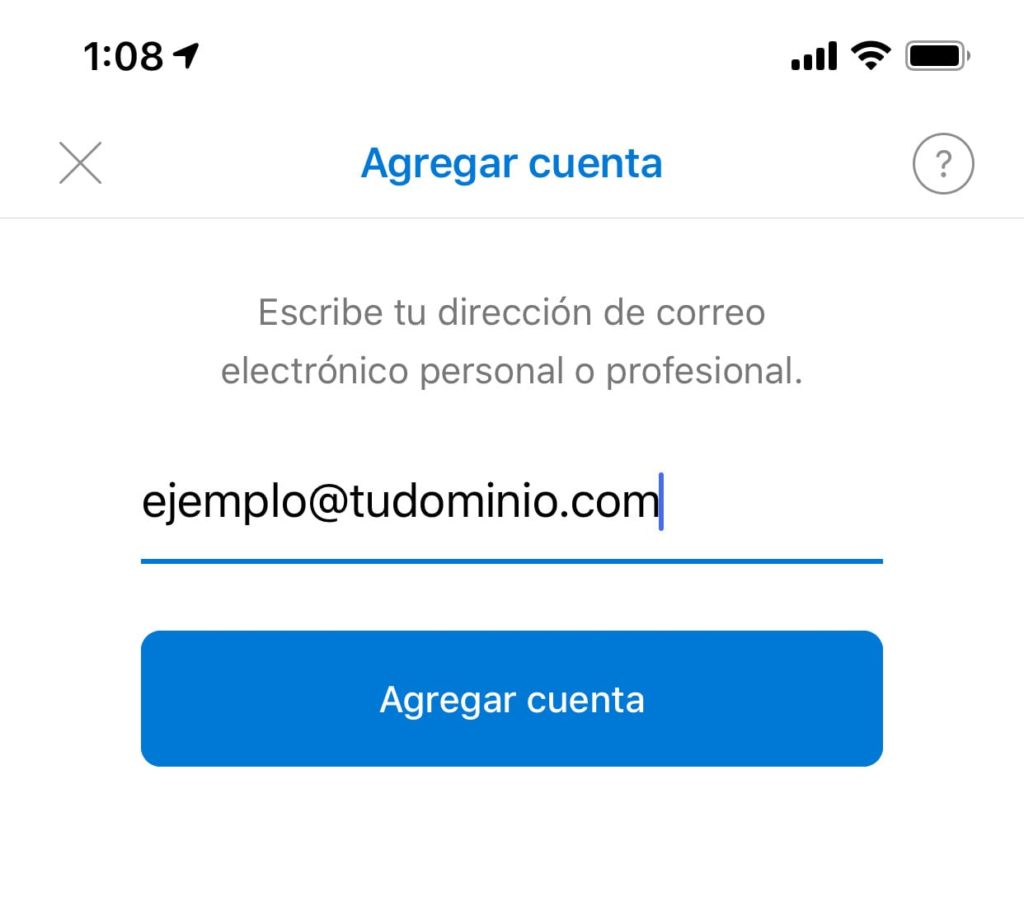
4.- Then enter the email that we will configure
5.-Then you have to click on the question mark at the top or “No exchange” and select “Change the account provider”
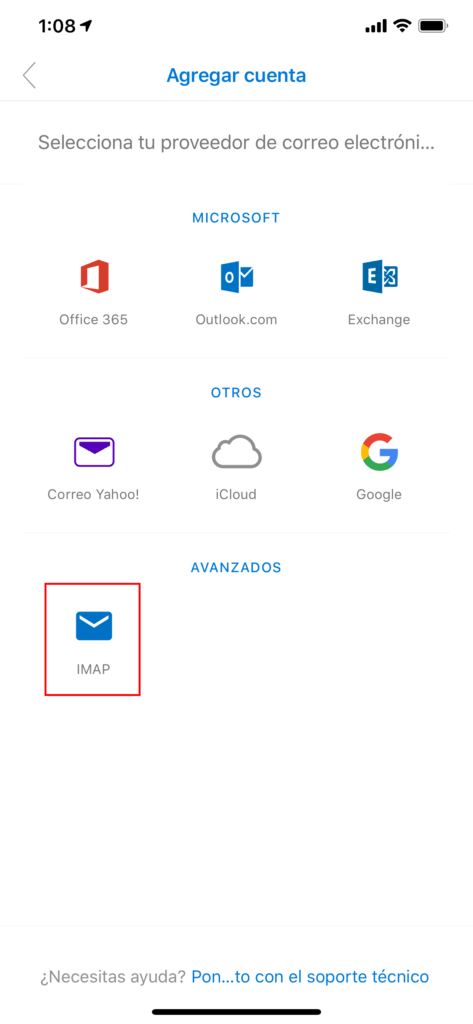
6.- Select IMAP
7.-Now we have to enable the advanced settings and fill in the data as shown below (SMTP host names should not be changed)
8.-Once finished we will have to wait a few minutes for the emails to be downloaded and then it can be used normally

NOTE: Depending on your version of Outlook it is possible to ask for the ports for IMAP which is 993 and for SMTP it is 465